
Last month I caught myself doing something I am not proud of. I tapped a “package delivery” link in a text message before I had even finished reading it. Nothing bad happened, but my stomach dropped. Add to that the ads that seemed to follow me from site to site, and I decided to stop guessing about my PC’s protection and actually test something. I picked IObit Malware Fighter 14, installed the free version, and used it on my everyday Windows PC for several days. Here is what I found, including the parts locked behind the paid tier.
Why I Started Worrying About Tracking and Phishing
Malware is the threat most people think about, but my real worries were quieter. Tracking cookies quietly build a profile of what you browse, and phishing pages are designed to look like banks, couriers, and email logins. A basic file scanner does not always speak to either concern. I wanted a tool that covered both the file side and the browsing side, ideally without a monthly fee. That is why a free antimalware option was my starting point.
First Impressions of the Main Screen
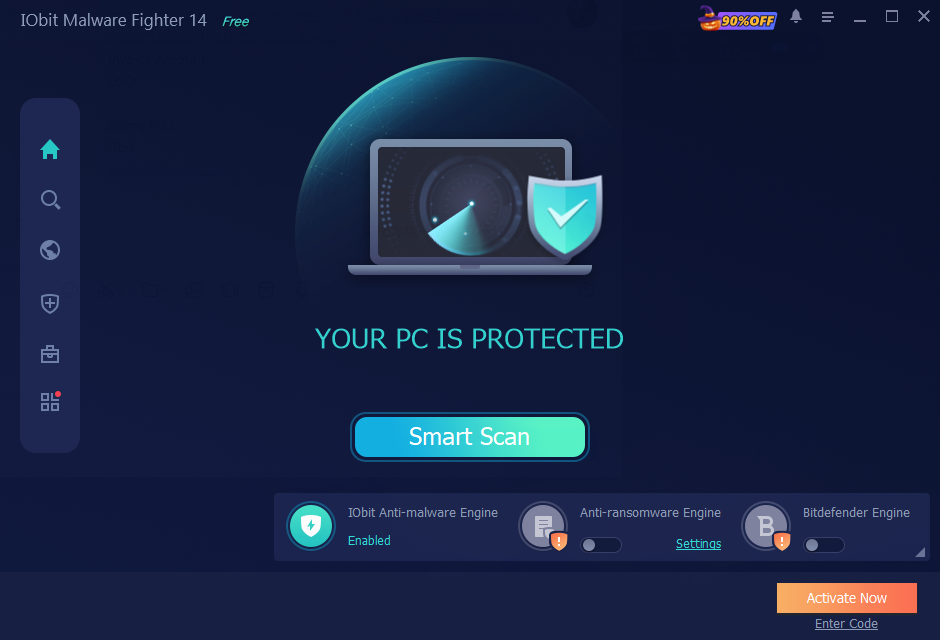
Setup was quick, and the home screen is refreshingly clean: one large Smart Scan button, a status line, and three engine indicators at the bottom. The status read “Your PC is in basic protection,” which I found honest. The IObit Anti-malware Engine was enabled, while the Anti-ransomware Engine and the Bitdefender Engine were switched off because they belong to the Pro edition. I appreciated that the app did not pretend otherwise.
Running the Scans
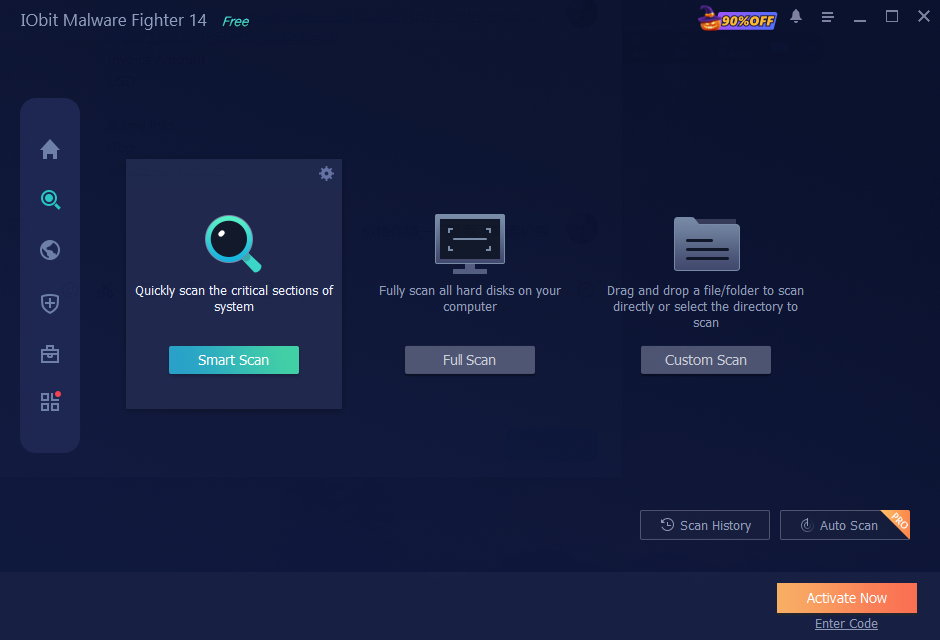
The scan page offers three choices. Smart Scan checks the critical sections of the system, Full Scan covers all hard disks, and Custom Scan lets you drag in a file or folder. Scan History is available, while Auto Scan carries a Pro badge.
I started with Smart Scan. At the three second mark it was 45% done, checking malicious registry entries, with 31,759 objects scanned and zero threats detected. That speed surprised me.
Next I ran a Full Scan. After 19 seconds it was only at 2%, with 10,530 objects checked, so a complete pass across every disk takes real time. I let IObit Malware Fighter run in the background while I worked. I liked the Pause and Stop buttons, and I left the “Automatically remove” box unticked so I could review anything before it was deleted.
For a targeted test, I pointed Custom Scan at C:\Intel, a folder I rarely open. It finished in about two seconds with nothing detected, which showed me how handy it is for checking a single suspicious download.
What the Results Page Told Me About Tracking
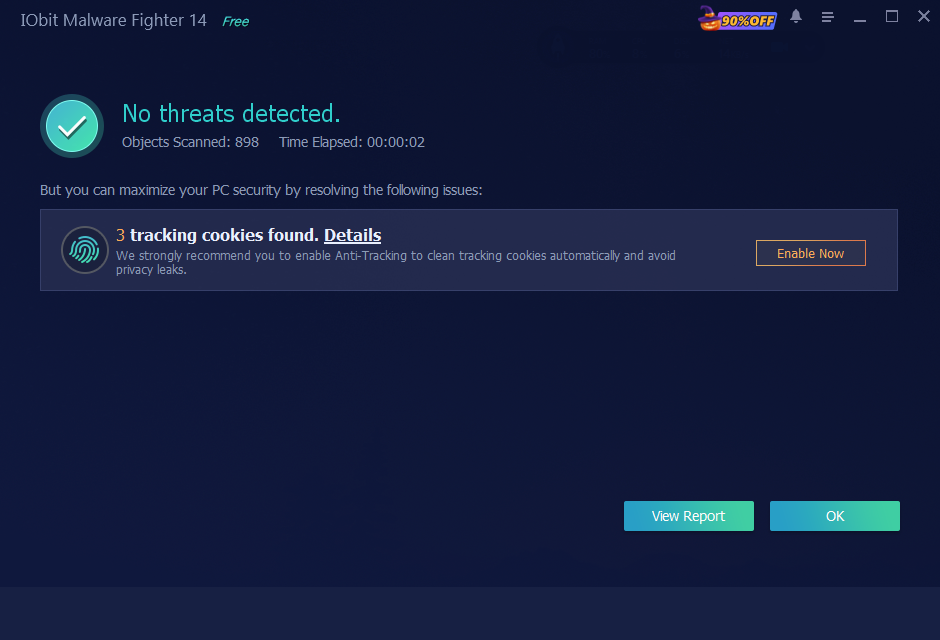
This was the moment that mattered most to me. The report said “No threats detected” after scanning 1,306 objects in nine seconds. Yet right below it, the app flagged three tracking cookie. That is exactly the kind of quiet privacy leak I had been worried about: no virus, but something was still watching my browsing.
There is a catch worth knowing. The app recommends enabling Anti-Tracking to clean these cookies automatically, and that feature is marked Pro. In the free version I could see the detection but not rely on automatic cleanup.
Browser Protection and Phishing
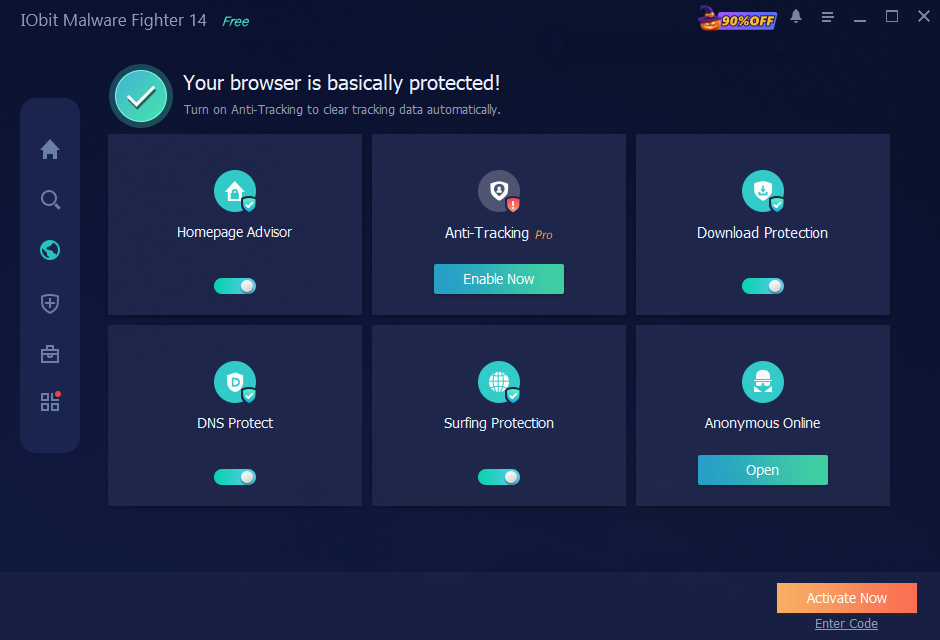
The Browser Protect page opened with the message “Your browser is basically protected!” and six tiles. Homepage Advisor, Download Protection, DNS Protect, and Surfing Protection were all switched on in the free version. Anti-Tracking sat there with a Pro label and an Enable Now button, and Anonymous Online offered an Open button.
I want to be transparent here. I did not build a lab of fake phishing pages, so I cannot give you detection percentages. What I can say is that these layers are meant to check downloads, DNS lookups, and risky sites while you browse. During my days of normal use they ran quietly, I saw no false alarms, and I did not notice any slowdown. For phishing, I still treat the tool as one layer, not a replacement for caution with unknown links.
Real-Time Guards Under the Hood
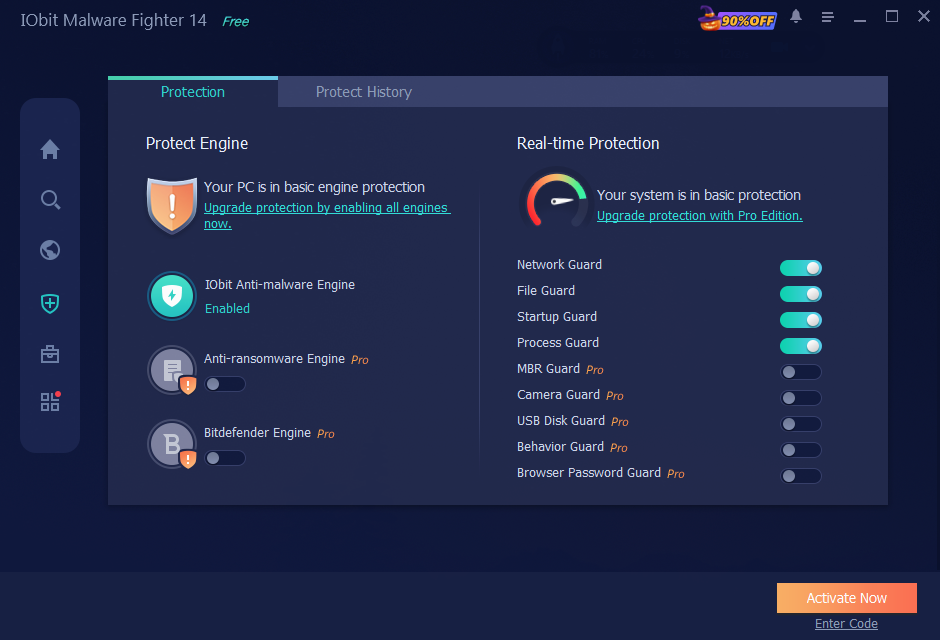
The Security Guards page splits protection into the engine on the left and real-time guards on the right. Network Guard, File Guard, Startup Guard, and Process Guard were enabled. MBR Guard, Camera Guard, USB Disk Guard, Behavior Guard, and Browser Password Guard were off because they require Pro. Camera Guard and Browser Password Guard sounded especially relevant to privacy, so I would have liked to try them. There is also a Protect History tab where you can review what the guards have done.
Extra Tools and the Action Center
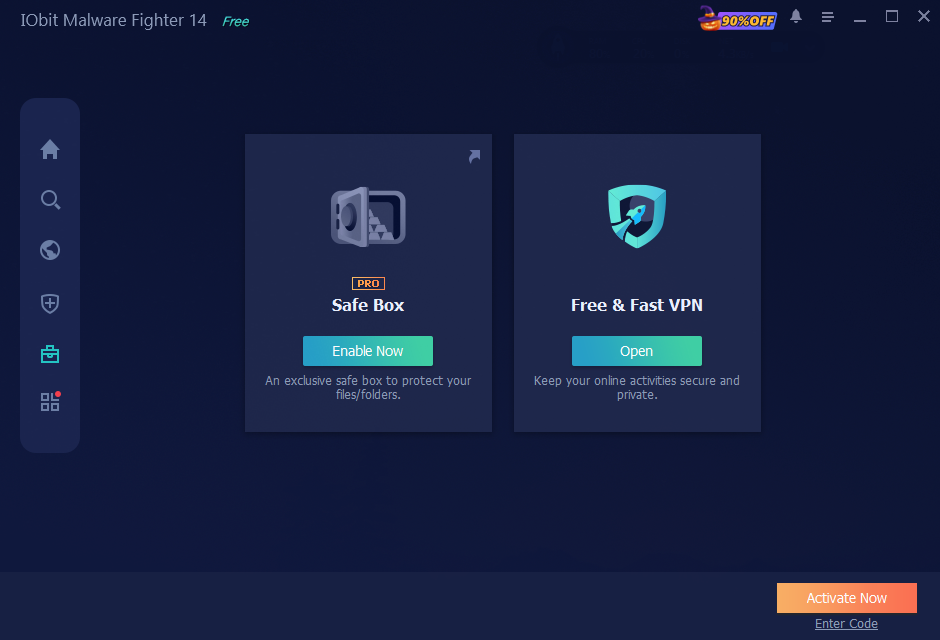
The Tools page holds two items. Safe Box, which protects files and folders, is a Pro feature. The Free & Fast VPN has an Open button and is a nice extra for public Wi-Fi, though I did not benchmark its speed.
What I Liked and What I Did Not
- Clear status messages that openly state what is and is not protected
- Fast Smart Scan with simple Pause, Stop, and review options
- Detection of a tracking cookie that a plain file scan would have ignored
- Browser-focused protection switched on by default in the free version
- Anti-Tracking, extra engines, and several guards are locked behind Pro
My Final Verdict
After several days of testing, I came away reassured, but not overconfident. IObit Malware Fighter gave me a fast, easy way to scan, flagged a tracking cookie I would never have noticed, and kept basic browser protection running without getting in my way. It also showed me clearly which features I was missing in the free tier.
If you want a simple free antimalware tool to add a layer of protection for everyday browsing, it is a reasonable place to start. If online tracking is your main concern, expect to look at the Pro edition for automatic cleanup. Whatever you choose, keep your habits sharp: slow down before clicking unexpected links, and let the software back you up rather than replace your judgment.